Tampilkan postingan dengan label 2 Columns. Tampilkan semua postingan


DemoDownload
Template name : ModernBlog

Platform: Blogger / Blogspot

Release date : June 2013

Author :  www.soratemplates.com

Template features : Personal, Interior, Fixed Width, Dropdown Menu, Social Widget, Gray Background, Page Navigation Widget.

License : Creative Commons Attribution 3.0

Basic Instructions : How to install a Blogger Template

Configure Dropdown Menu:
Login to blogger dashboard --> layout --> Edit HTML. Now scroll down to where you see the codes below:
  • <ul class='nav-menu' id='menu-main-menu'>       
    <li><a href='#'>Home</a></li>
    <li><a href='#'>Custom Color</a></li>
    <ul class='sub-menu'>
    <li><a href='#'>Interior</a></li>
    <li><a href='#'>Portfolio</a></li>
    ..........
Replace "#" with your menu item URL.

Configure Social Widget:
search for:
  • <div class='share_item'>
    <a class='twitterIcon' href='#'>twitter</a>
    <a class='facebookIcon' href='#'>facebook</a>
    <a class='googleIcon' href='#'>google</a>
    ..........
    </div>
Replace "#" with your Social Account's URL.

How to change Author Section
search for:
  • <div class='author_post_name'>
    <h4>About &quot;<a href='#' rel='author'>Administrator</a>&quot;</h4>
    </div>
    <div class='author_post_pic'>
    <img class='avatar avatar-56 photo' height='56' src='/avatar.png' width='56'/></div>
    <div class='author_post_desc'>
    Lorem ipsum dolor sit ame..........

Configure Page Navigation Widget
search for:
  • var posts=4, // Number of posts in each page
    num=2, // Number of buttons will display


DemoDownload
Template name : Alyeska II

Platform: Blogger / Blogspot

Release date : May 2013

Author :  www.soratemplates.com

Template features : Magazine, Fashion, Featured Content Slider, Fixed Width, Dropdown Menu, Social Widget, Pink Background, Page Navigation Widget.

License : Creative Commons Attribution 3.0

Basic Instructions : How to install a Blogger Template

Configure Featured Content Slider:
Login to blogger dashboard --> layout --> Edit HTML. Now scroll down to where you see the codes below:
  • <div class='nivoSlider' id='nivo_slider'>
    <a href='#'><img height='400' src='../slide.jpg' width='920'/></a>
    ..........
    </div>
Replace:
  • "#" with your featured post URL.
  • "slide.jpg" with your slider image.

Configure Dropdown Menu:
Login to blogger dashboard --> layout --> Edit HTML. Now scroll down to where you see the codes below:
  •  <ul class='menu' id='menu-main-menu'>
    <li><a href='#'>Home</a></li>
    <li><a href='#'>Blog</a></li>
    <ul class='sub-menu'>
    <li><a href='#'>Full Width Page</a></li>
    <li><a href='#'>Sidebar Right</a></li>
    ..........
Replace "#" with your menu item URL.

Configure Page Navigation Widget:
search for:
  • var posts=4, // Number of posts in each page
    num=2, // Number of buttons will display


DemoDownload
Template name : MusiMag (Green Skin)

Platform: Blogger / Blogspot

Release date : March 2013

Author :  www.soratemplates.com

Template features : 2 Columns, Right Sidebar, Music, Magazine, Featured Content Slider, Fixed Width, Green Background, Dropdown Menu, Page Navigation Widget.

License : Creative Commons Attribution 3.0

Basic Instructions : How to install a Blogger Template

Configure Featured Content Slider:
Login to blogger dashboard --> layout --> Edit HTML. Now scroll down to where you see the codes below:
  • <div class='featured_banner'/>
    <div id='slider'>
    <div class='jFlowPrev'><img alt='' height='194' src='images/previous.png' width='35'/></div>
    <div id='slider_img'>
    <a href='#'><span>The best interview is here</span><img height='360' src='../image.jpg' width='900'/></a>
    ..........
Replace:
  • "#" with your featured post URL.
  • "image.jpg" with your slider image.

Configure Dropdown Menu:
Login to blogger dashboard --> layout --> Edit HTML. Now scroll down to where you see the codes below:
  • <div id='navigation'>
    <ul>
    <li><a href='#'>Interview<span>Meet your artists</span></a></li>
    <li><a href='#'>Videos<span>Watch Stereolite TV</span></a>
    <ul class='sub_menu'>
    <li><a href='#'><span>Concerts (2)</span></a></li>
    ..........
Replace "#" with your menu item URL.

Configure Page Navigation Widget:
search for:
  • var posts=4, // Number of posts in each page
    num=2, // Number of buttons will display


DemoDownload
Template name : MusiMag

Platform: Blogger / Blogspot

Release date : February 2013

Author :  www.soratemplates.com

Template features : 2 Columns, Right Sidebar, Music, Magazine, Featured Content Slider, Fixed Width, Blue Background, Dropdown Menu, Page Navigation Widget.

License : Creative Commons Attribution 3.0

Basic Instructions : How to install a Blogger Template

Configure Featured Content Slider:
Login to blogger dashboard --> layout --> Edit HTML. Now scroll down to where you see the codes below:
  • <div class='featured_banner'/>
    <div id='slider'>
    <div class='jFlowPrev'><img alt='' height='194' src='images/previous.png' width='35'/></div>
    <div id='slider_img'>
    <a href='#'><span>The best interview is here</span><img height='360' src='../image.jpg' width='900'/></a>
    ..........
Replace:
  • "#" with your featured post URL.
  • "image.jpg" with your slider image.

Configure Dropdown Menu:
Login to blogger dashboard --> layout --> Edit HTML. Now scroll down to where you see the codes below:
  • <div id='navigation'>
    <ul>
    <li><a href='#'>Interview<span>Meet your artists</span></a></li>
    <li><a href='#'>Videos<span>Watch Stereolite TV</span></a>
    <ul class='sub_menu'>
    <li><a href='#'><span>Concerts (2)</span></a></li>
    ..........
Replace "#" with your menu item URL.

Configure Page Navigation Widget:
search for:
  • var posts=4, // Number of posts in each page
    num=2, // Number of buttons will display


DemoDownload
Template name : WebDesign

Platform: Blogger / Blogspot

Release date : January 2013

Author :  www.soratemplates.com

Template features : 2 Columns, Right Sidebar, Website Design, Featured Content Slider, Fixed Width, Dark Green Background, Page Navigation Widget.

License : Creative Commons Attribution 3.0

Basic Instructions : How to install a Blogger Template

Configure Featured Content Slider:
Login to blogger dashboard --> layout --> Edit HTML. Now scroll down to where you see the codes below:
  • <div class='nivoSlider' id='slider'>
    <img src='../slider-1.jpg'
    ..........
    <div class='nivo-html-caption' id='sliderCaption1'>
    <div class='title'><a href='#'>Consectetur</a></div>
    Lorem ipsum dolor sit amet...</div>
    ..........
Replace:
  • "#" with your featured post URL.
  • "slide-1.jpg" with your slider image.

Configure Page Navigation Widget:
search for:
  • var posts=3, // Number of posts in each page
    num=2, // Number of buttons will display


Template name : GameMix
Author :  www.soratemplates.com

Template features : 2 Columns, Right Sidebar, Games, Magazine, Featured Content Slider, Fixed Width, Dark Background, Dropdown Menu, Page Navigation Widget.

Configure Featured Content Slider:
Login to blogger dashboard --> layout --> Edit HTML. Now scroll down to where you see the codes below:
  • <div class='nivoSlider' id='slider'>
    <a href='#'><img src='../slide.jpg' title='#sliderCaption1'/></a>
    ..........
    <div class='nivo-html-caption' id='sliderCaption1'>
    <h2>Excepteur sint occa- ecat cupidatat</h2>
    Excepteur sint occaecat cupid...
    <a class='arrow' href='#'/></div>
    ..........
Replace:
  • "#" with your featured post URL.
  • "slide.jpg" with your slider image.

Configure Dropdown Menu:
Login to blogger dashboard --> layout --> Edit HTML. Now scroll down to where you see the codes below:
  • <ul class='sf-menu'>
    <li><a href='#'>Home</a></li>
    <li><a href='#'>About</a>
    <ul class='sub-menu'>
    <li><a href='#'>Testimonials</a></li>
    <li><a href='#'>Archives</a></li>
    ..........
Replace "#" with your menu item URL.

Configure Page Navigation Widget:
search for:
  • var posts=4, // Number of posts in each page
    num=2, // Number of buttons will display


Template name : eSpecial

Template features : Wordpress Look, 2 Columns, 3 Columns Footer, Left Sidebar, Portfolio, Business, Featured Content Slider, Fixed Width, Dark Background, Top Navigation Menu, Page Navigation Widget.

Author :  www.soratemplates.com

Designer :  www.temashdesignlab.com

Configure Post Date:
Log in to Blogger Dashboard --> Settings --> Format. Make sure the Timestamp Format and Language are all changed to the following:


If you don't do this, it will display "UNDEFINED".

Configure Featured Content Slider:
Login to blogger dashboard --> layout --> Edit HTML. Now scroll down to where you see the codes below:
  • <ul class='lof1-main-wapper'>
    <li><a href='#'><img src='/image.jpg'/></a>
    <div class='lof1-main-item-desc'>
    <div class='lof1-main-item-title'>
    <h2><a href='#'>Professional Business &amp; Portfolio Theme</a></h2></div>
    <p>Lorem ipsum dolor sit amet, consectetur adipiscing elit.</p>
    </div>
    </li>
    ..........
    <ul class='lof1-navigator'>
    <li><img src='/thumb.jpg'/>
    </li>
    ..........
Replace:
  • "#" with your featured post URL.
  • "image.jpg" with your slider image.
  • "thumb.jpg" with your thumbnail image.

Configure Dropdown Menu:
Login to blogger dashboard --> layout --> Edit HTML. Now scroll down to where you see the codes below:
  • <ul class='s-menu' id='menu-main-navigation'>
    <li><a href='#'>Home</a>
    <ul class='sub-menu'>
    <li><a href='#'>Home page layout 2</a></li>
    </ul>
    </li>
    <li><a href='#'>Sliders</a>
    ..........
Just replace "#" with your menu item URL.

Configure Page Navigation Widget:
search for:
  • var posts=4, // Number of posts in each page
    num=2, // Number of buttons will display


Template name : Eclipse

Author :  www.soratemplates.com

Designer :  www.devilcantburn.com

Template features : Wordpress Look, 2 Columns, 4 Columns Footer, Right Sidebar, Featured Content Slider, Fixed Width, Social Widget, Dropdown Menu.

Configure Featured Content Slider:
Login to blogger dashboard --> layout --> Edit HTML. Now scroll down to where you see the codes below:
  • <div class='nivoSlider' id='nivo_slider'>
    <a href='#'><img height='400' src='/image.jpg' width='920'/></a>
    ..........
Replace:
  • "#" with your featured post URL.
  • "image.jpg" with your slider image.

Configure Dropdown Menu:
Login to blogger dashboard --> layout --> Edit HTML. Now scroll down to where you see the codes below:
  • <ul class='main_menu' id='menu-menu-1'>
    <li><a href='#'><span class='gfont'>Home</span> <span class='subline'>&#8592; Back</span></a></li>
    <li><a href='#'><span>News</span><span class='subline'>Read Us!</span></a>
    <ul class='sub-menu'>
    <li><a href='#'>Attractive Design</a></li>
    <li><a href='#'>Inspirations</a></li>
    ..........
Replace "#" with your menu item URL.

Configure Social Widget:
Search for:
  • <div id='social_networks'>
    <ul>
    <li class='sorting-01 facebook'><a href='#'><span class='inv'>Facebook</span></a></li>
    <li class='sorting-03 twitter'><a href='#'><span class='inv'>twitter</span></a></li>
    <li class='sorting-02 googleplus'><a href='#'><span class='inv'>googleplus</span></a></li>
    ..........
Replace "#" with your Social Account URL.


Template name : Replay

Author :  www.soratemplates.com

Designer :  www.themextemplates.com

Template features : Wordpress Look, 2 Columns, Right Sidebar, Music, Featured Content Slider, Fixed Width, Gray Background, Social Widget, Dropdown Menu, HTML5 Music Player, Page Navigation Widget.

Configure Featured Content Slider:
Login to blogger dashboard --> layout --> Edit HTML. Now scroll down to where you see the codes below:
  • <div class='ribbon-slide'>
    <ul>
    <li class='slide-400'><a href='#'>
    <img class='fullwidth' height='400' src='/image.jpg' width='400'/></a>
    </li>
    ..........
Replace"image.jpg" with your slider image.

Configure Dropdown Menu:
Login to blogger dashboard --> layout --> Edit HTML. Now scroll down to where you see the codes below:
  • <ul class='menu' id='menu-main-menu'>
    <li><a href='#'>News</a>
    <ul class='sub-menu'>
    <li><a href='#'>Ribbon Slider</a></li>
    <li><a href='#'>Fade Slider</a></li>
    ..........
Just replace "#" with your menu item URL.

Configure Social Widget:
Search for:
  • <a class='facebook' href='#' target='_blank' title='Facebook'/>    
    <a class='tumblr' href='#' target='_blank' title='Tumblr'/>
    <a class='twitter' href='#' target='_blank' title='Twitter'/>
Replace "#" with your Social Account URL.

Configure Page Navigation Widget:
search for:
  • var posts=5, // Number of posts in each page
    num=2, // Number of buttons will display

Configure Music Player:
search for:
  • <div class='playlist'>
    <a href='/song1.mp3'>Song Title 1</a>
    <a href='/song2.mp3'>Song Title 2</a>
    </div>
Replace song.mp3 and Song Title as you want.


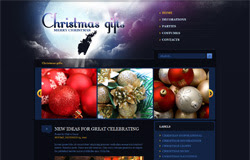
Template name : Christmas Gifts

Author :  www.soratemplates.com

Template features : Wordpress Look, 2 Columns, Right Sidebar, Christmas, Portfolio, Featured Content Slider, Fixed Width.

Configure Featured Content Slider:
Login to blogger dashboard --> layout --> Edit HTML. Now scroll down to where you see the codes below:
  • <div class='boxgrid captionfull'>
    <a href='#'><img height='269' src='/slider.jpg' width='296'/></a>
    <div class='cover boxcaption' style=' top:269px; cursor: pointer;'>
    <h3 class='entry-title'>christmas decoration #1</h3>
    <div class='entry-content'><p>$57</p></div>
    <a class='more' href='#'>read more</a>
    </div>
    </div>
    ..........
Replace:
  • "#" with your featured post URL.
  • "image.jpg" with your slider image URL.


DemoDownload
Template name : Christmas Gifts

Platform: Blogger / Blogspot

Release date : December 2012

Author :  www.soratemplates.com

Template features : 2 Columns, Right Sidebar, Christmas, Portfolio, Featured Video Slider, Fixed Width, Dark Background.

License : Creative Commons Attribution 3.0

Basic Instructions : How to install a Blogger Template

Configure Featured Video Slider:
Login to blogger dashboard --> layout --> Edit HTML. Now scroll down to where you see the codes below:
  • <li>
    <div class='boxgrid captionfull'>
    <a href='#'><img height='269' src='../slider1.jpg' width='296'/></a>
    <div class='cover boxcaption' style=' top:269px; cursor: pointer;'>
    <h3 class='entry-title'>christmas decoration #1</h3>
    <div class='entry-content'><p>$57</p></div>
    <a class='more' href='#'>read more</a></div>
    </div>
    </li>
    ..........
Replace:
  • "#" with your featured post URL.
  • "slide,jpg" with your slider image URL.


DemoDownload
Template name : Wilderness

Platform: Blogger / Blogspot

Release date : November 2012

Author :  www.soratemplates.com

Designer :  www.devilcantburn.com

Template features : Wordpress Look, 2 Columns, Right Sidebar, 3D Slider, Fixed Width, paper-wood background, Dropdown Menu, Page Navigation Widget.

License : Creative Commons Attribution 3.0

Basic Instructions : How to install a Blogger Template

Configure Featured Content Slider:
Login to blogger dashboard --> layout --> Edit HTML. Now scroll down to where you see the codes below:
  • <div id='slider_wrapper'>
    <div class='marg_0_0_20_0' id='sliderCss3d'>
    <img alt='Slider 1' data-transition='{&quot;effect&quot;: &quot;blindsVertical&quot;, &quot;slices&quot;: 6, &quot;animSpeed&quot;: 1400, &quot;delay&quot;: 100, &quot;delayDir&quot;: &quot;fromCentre&quot;, &quot;easing&quot;: &quot;easeInCubic&quot;, &quot;depthOffset&quot;: 800, &quot;sliceGap&quot;: 5}' src='/slider.jpg'/>
    ..........
Replace:
"image.jpg" with your slider image.
Configure Dropdown Menu:
Login to blogger dashboard --> layout --> Edit HTML. Now scroll down to where you see the codes below:
  • <ul class='menu' id='menu'>
    <li><a href='#'>Home</a></li>
    <li><a href='#'>Fullwidth page</a></li>
    <ul class='sub-menu'>
    <li><a href='#'>Buttons</a></li>
    <li><a href='#'>Google Map</a></li>
    ..........
Replace "#" with your menu item URL.

Configure Page Navigation Widget:
search for:
  • var posts=3, // Number of posts in each page
    num=2, // Number of buttons will display

How to change Author Section:
Find this:
  • <h4>About the author</h4>
    <div id='author-info'>
    <div id='author-image'>
    <a href='#'><img height='80' src='/avatar.png' width='80'/></a>
    </div>
    <div id='author-bio'>
    <h5>Admin</h5>
    Donec non enim in turpis pulvinar facilisis. Ut felis. Praesent dapibus, neque id cursus faucibus. Aenean fermentum, eget tincidunt.
    </div>


DemoDownload
Template name : Replay

Platform: Blogger / Blogspot

Release date : October 2012

Author :  www.soratemplates.com

Designer :  www.themextemplates.com

Template features : Wordpress Look, 2 Columns, Right Sidebar, Music, Featured Content Slider, Fixed Width, Gray Background, Social Widget, Dropdown Menu, HTML5 Music Player, Page Navigation Widget.

License : Creative Commons Attribution 3.0

Basic Instructions : How to install a Blogger Template

Configure Featured Content Slider:
Login to blogger dashboard --> layout --> Edit HTML. Now scroll down to where you see the codes below:
  • <div class='ribbon-slide'>
    <ul>
    <li class='slide-400'><a href='#'>
    <img class='fullwidth' height='400' src='/image.jpg' width='400'/></a>
    </li>
    ..........
Replace"image.jpg" with your slider image.

Configure Dropdown Menu:
Login to blogger dashboard --> layout --> Edit HTML. Now scroll down to where you see the codes below:
  • <ul class='menu' id='menu-main-menu'>
    <li><a href='#'>News</a>
    <ul class='sub-menu'>
    <li><a href='#'>Ribbon Slider</a></li>
    <li><a href='#'>Fade Slider</a></li>
    ..........
Just replace "#" with your menu item URL.

Configure Social Widget:
Search for:
  • <a class='facebook' href='#' target='_blank' title='Facebook'/>    
    <a class='tumblr' href='#' target='_blank' title='Tumblr'/>
    <a class='twitter' href='#' target='_blank' title='Twitter'/>
Replace "#" with your Social Account URL.

Configure Page Navigation Widget:
search for:
  • var posts=5, // Number of posts in each page
    num=2, // Number of buttons will display

Configure Music Player:
search for:
  • <div class='playlist'>
    <a href='/song1.mp3'>Song Title 1</a>
    <a href='/song2.mp3'>Song Title 2</a>
    </div>
Replace song.mp3 and Song Title as you want.


DemoDownload
Template name : Eclipse

Platform: Blogger / Blogspot

Release date : Oct 2012

Author :  www.soratemplates.com

Designer :  www.devilcantburn.com

Template features : Wordpress Look, 2 Columns, 4 Columns Footer, Right Sidebar, Featured Content Slider, Fixed Width, Social Widget, Dropdown Menu.

License : Creative Commons Attribution 3.0

Basic Instructions : How to install a Blogger Template

Configure Featured Content Slider:
Login to blogger dashboard --> layout --> Edit HTML. Now scroll down to where you see the codes below:
  • <div class='nivoSlider' id='nivo_slider'>
    <a href='#'><img height='400' src='/image.jpg' width='920'/></a>
    ..........
Replace:
  • "#" with your featured post URL.
  • "image.jpg" with your slider image.

Configure Dropdown Menu:
Login to blogger dashboard --> layout --> Edit HTML. Now scroll down to where you see the codes below:
  • <ul class='main_menu' id='menu-menu-1'>
    <li><a href='#'><span class='gfont'>Home</span> <span class='subline'>&#8592; Back</span></a></li>
    <li><a href='#'><span>News</span><span class='subline'>Read Us!</span></a>
    <ul class='sub-menu'>
    <li><a href='#'>Attractive Design</a></li>
    <li><a href='#'>Inspirations</a></li>
    ..........
Replace "#" with your menu item URL.

Configure Social Widget:
Search for:
  • <div id='social_networks'>
    <ul>
    <li class='sorting-01 facebook'><a href='#'><span class='inv'>Facebook</span></a></li>
    <li class='sorting-03 twitter'><a href='#'><span class='inv'>twitter</span></a></li>
    <li class='sorting-02 googleplus'><a href='#'><span class='inv'>googleplus</span></a></li>
    ..........
Replace "#" with your Social Account URL.


DemoDownload
Template name : eSpecial (Light Skin)

Platform: Blogger / Blogspot

Release date : Sep 2012

Author :  www.soratemplates.com

Designer :  www.temashdesignlab.com

Template features : Wordpress Look, 2 Columns, 3 Columns Footer, Left Sidebar, Portfolio, Business, Featured Content Slider, Fixed Width, Light Gray Background, Top Navigation Menu, Page Navigation Widget.

License : Creative Commons Attribution 3.0

Instructions : eSpecial Blogger Template


DemoDownload
Template name : ChromeGT (Red Skin)

Platform: Blogger / Blogspot

Release date : Sep 2012

Template features : Wordpress Look, 2 Columns, 4 Columns Footer, Right Sidebar, Modern, Featured Content Slider, Fixed Width, Dark Background, Top Navigation Menu, Page Navigation Widget.

Author :  www.soratemplates.com

Designer :  www.temashdesignlab.com

License : Creative Commons Attribution 3.0

Instructions : ChromeGT Blogger Template


DemoDownload
Template name : eSpecial

Template features : Wordpress Look, 2 Columns, 3 Columns Footer, Left Sidebar, Portfolio, Business, Featured Content Slider, Fixed Width, Dark Background, Top Navigation Menu, Page Navigation Widget.

Release date : Sep 2012

Author :  www.soratemplates.com

Designer :  www.temashdesignlab.com

License : Creative Commons Attribution 3.0

Basic Instructions : How to install a Blogger Template

Configure Post Date:
Log in to Blogger Dashboard --> Settings --> Format. Make sure the Timestamp Format and Language are all changed to the following:


If you don't do this, it will display "UNDEFINED".

Configure Featured Content Slider:
Login to blogger dashboard --> layout --> Edit HTML. Now scroll down to where you see the codes below:
  • <ul class='lof1-main-wapper'>
    <li><a href='#'><img src='/image.jpg'/></a>
    <div class='lof1-main-item-desc'>
    <div class='lof1-main-item-title'>
    <h2><a href='#'>Professional Business &amp; Portfolio Theme</a></h2></div>
    <p>Lorem ipsum dolor sit amet, consectetur adipiscing elit.</p>
    </div>
    </li>
    ..........
    <ul class='lof1-navigator'>
    <li><img src='/thumb.jpg'/>
    </li>
    ..........
Replace:
  • "#" with your featured post URL.
  • "image.jpg" with your slider image.
  • "thumb.jpg" with your thumbnail image.

Configure Dropdown Menu:
Login to blogger dashboard --> layout --> Edit HTML. Now scroll down to where you see the codes below:
  • <ul class='s-menu' id='menu-main-navigation'>
    <li><a href='#'>Home</a>
    <ul class='sub-menu'>
    <li><a href='#'>Home page layout 2</a></li>
    </ul>
    </li>
    <li><a href='#'>Sliders</a>
    ..........
Just replace "#" with your menu item URL.

Configure Page Navigation Widget:
search for:
  • var posts=4, // Number of posts in each page
    num=2, // Number of buttons will display


DemoDownload
Template name : Insomnia

Template features : Wordpress Look, 2 Columns, 3 Columns Footer, Right Sidebar, Personal, Featured Content Slider, Fixed Width, Dark Background, Top Navigation Menu, Social Sharing Widget.

Release date : Sep 2012

Author :  www.soratemplates.com

Designer :  designerthemes.com

License : Creative Commons Attribution 3.0

Basic Instructions : How to install a Blogger Template

An impressive blogger template which uses an advanced Auto CAD software used along a creative 3d software will provide more blog customization options.

Configure Featured Content Slider:
Login to blogger dashboard --> layout --> Edit HTML. Scroll down to where you see the codes below:
  • <li class='featured-post col g4'>
    <a class='dt-thumb' href='#'><img class='dt-post-image thumbnail' height='225' src='/image.jpg' width='300'/></a>
    <div class='post-info'>
    <h2 class='entry-title'><a href='#'>Under Lights in Astoria</a></h2>
    </div>
    </li>
    ..........
Now replace:
  • "#" with your featured post URL.
  • "image.jpg" with your slider image

Configure Dropdown Menu:
Login to blogger dashboard --> layout --> Edit HTML. Now scroll down to where you see the codes below:
  • <ul class='fadein drop' id='menu-main-nav'>
    <li><a href='#'>Blog</a>
    <ul class='sub-menu'>
    <li><a href='#'>Entertainment</a></li>
    <li><a href='#'>Politics</a></li>
    ..........
Replace "#" with your menu item URL.


DemoDownload
Template name : Pegasus

Template features : Wordpress Look, Portfolio Homepage, 2 Columns, Right Sidebar, 4 Columns Footer, White Background, Social Widget, Page Navigation Widget, Dropdown Menu.

Release date : August 2012

Author :  www.soratemplates.com

Designer :  www.wpexplorer.com

Basic Instructions : How to install a Blogger Template

Updated (12-08-2012): fix a critical bug that make all js effects stop working

Configure Dropdown Menu:
Login to blogger dashboard --> layout --> Edit HTML. Now scroll down to where you see the codes below:
  • <div class='menu-main-container'>
    <ul class='sf-menu' id='menu-main'>
    <li><a href='#'>Home</a></li>
    <li><a href='#'>Blog</a></li>
    <ul class='sub-menu'>
    <li><a href='#'>Black</a></li>
    <li><a href='#'>Blue</a></li>
    ..........
Now replace "#" with your menu item URL.

Configure Page Navigation Widget:
search for:
  • var posts=12, // Number of posts in each page
    num=2, // Number of buttons will display


Template name : ModernCars

Template type : 1 Sidebar, 2 Column, Adapted from WordPress, Blue, Elegant, Featured Section, Fixed width, Fresh, Header Banner, Magazine, Premium, Right Sidebar, Slider, Tabbed widget, Top Navigation Bar, Web 2.0, White


Author Name and URL : Lasantha Bandara / http://www.premiumbloggertemplates.com/

Original Designer URL : http://fthemes.com/moderncars-free-wordpress-theme/

Advanced Details : http://www.premiumbloggertemplates.com/2012/05/moderncars-premium-blogger-template.html
Diberdayakan oleh Blogger.